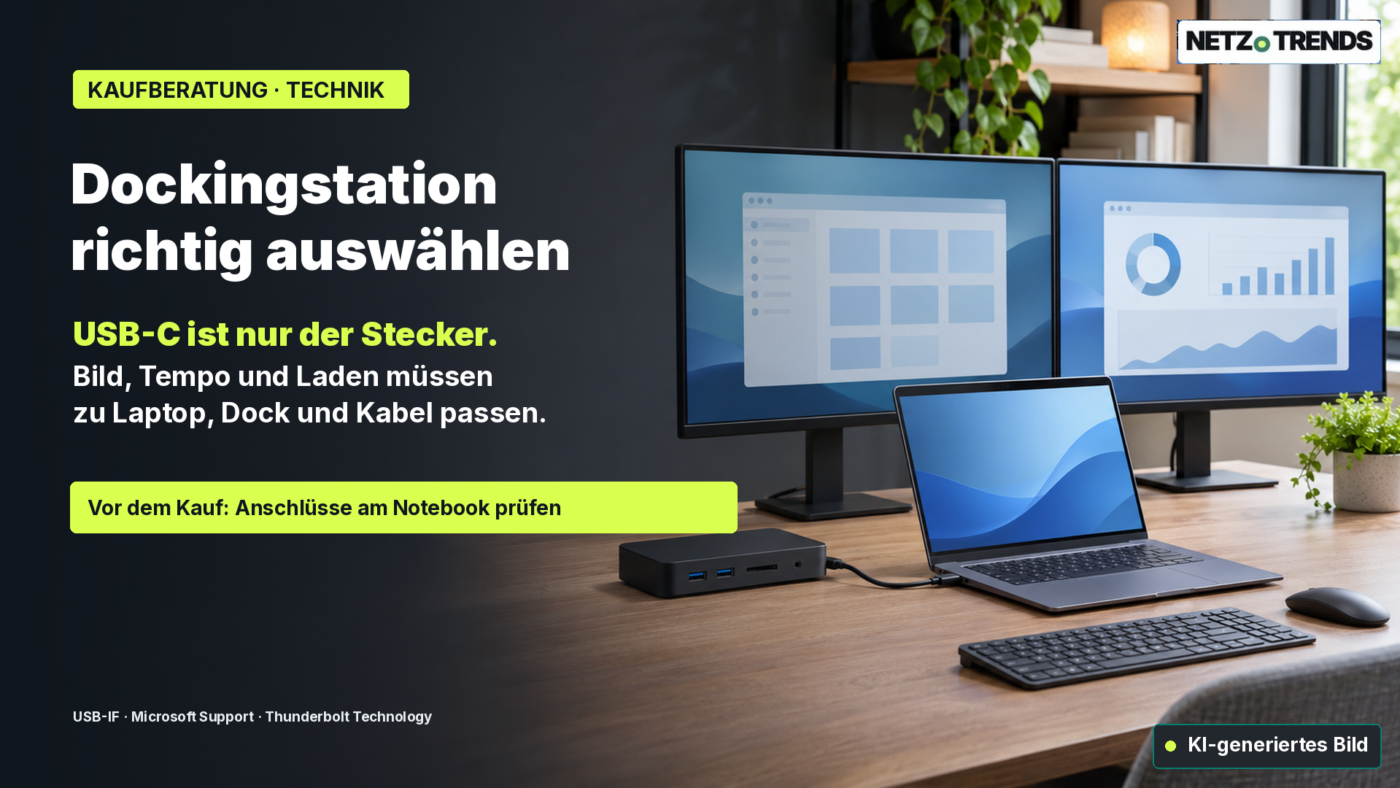
Before buying a USB-C docking station, match your laptop, monitors and cable first. The USB-C connector alone says nothing about video output, data speed or charging power.
Key points
- USB-C describes the shape of the connector. On its own it guarantees neither USB4 nor DisplayPort, Thunderbolt or a specific charging wattage.
- For video output, the laptop, dock and cable all need to support the same mode, plus the resolution and refresh rate you actually want.
- For charging, what matters is the power the dock actually passes to the laptop – which can be lower than the rating printed on the supplied power adapter.
A dock is meant to turn a single USB-C port into a full desk setup: monitors, keyboard, mouse, network and power, all connected with one cable. What decides whether it works is not the number of ports on the case, but whether the whole chain – laptop, dock, cable – actually supports what you need. USB-C is only the plug shape; which video, data and charging features run over it are set by the devices, the cable and the standards they implement. Checking this before buying avoids the most common disappointments in the UK market: a screen staying blank, two monitors only mirroring instead of extending, an external SSD running slower than expected, or a laptop still draining its battery while connected to the dock.
This guide explains how to choose a USB-C dock for a UK desk, which spec-sheet details actually matter, and when a simple hub is enough. It does not test individual products and names no single recommended model; it relies on the manufacturers’ own specifications and on the USB-IF, VESA and Thunderbolt standards, which apply identically in the UK as everywhere else.
As a rough price anchor for UK buyers (as of 15 November 2026): a basic 8-in-1 USB-C hub with charging pass-through, such as the Anker 555 USB-C Hub, sits in the two-figure range once back in stock (around £50, based on the EU list price of €59.99 converted at the ECB reference rate of 13 November 2026, 1 EUR = 0.83559 GBP; always check the live UK price), while a full Thunderbolt 4 dock with many ports, such as the CalDigit TS4, is currently listed at £369.99 on CalDigit’s own UK store. Both figures are examples to show the price range, not a recommendation for either brand.
What USB-C does – and doesn’t – tell you
USB-C is the name of a compact, reversible connector shape. On its own, it does not tell you what data rate a port reaches, whether it can carry a monitor signal, or how much power it supplies. The USB Implementers Forum (USB-IF) states explicitly that USB Type-C is not the same thing as USB 3.2, USB4 or USB Power Delivery. Manufacturers can implement different combinations of features, which is why they are expected to state the supported protocols and power levels clearly.
For buyers this means a laptop with a USB-C port is not automatically suited to every multi-monitor dock. Check the exact laptop model’s specification sheet for terms such as “DisplayPort Alt Mode”, “Thunderbolt 4”, “USB4”, or an explicit mention of external display support. A small lightning-bolt icon next to the port can be a hint, but it is no substitute for the manual – on some laptops, only certain USB-C ports support the feature you need.
DisplayPort Alt Mode lets a DisplayPort video signal travel over a USB-C connection. Whether this works depends on the exact host port and the path used. Microsoft advises checking Alternate Mode support on the PC, the display and the cable; VESA likewise confirms that the USB-C port on the source device itself must support DisplayPort. A dock cannot simply add video output that the laptop’s port does not already provide, unless it uses a separate, software-based display technology instead.
A USB-C cable is not just a passive wire with the right plugs either – it can support only part of the possible data, video and charging features. Use the cable supplied with the dock where possible; for a replacement cable, check its data rate, video support and power rating in the datasheet. A cheap phone-charging cable may be fine for a smartphone and unsuitable for a demanding monitor or Thunderbolt connection.
Monitors, resolution and refresh rate
First decide how many external monitors you actually want to run, and at what resolution and refresh rate. “Supports two monitors” is an incomplete claim if it is not clear whether that means two 4K screens at 60Hz, two Full HD screens, or a lower refresh rate. The real maximum is limited by the laptop’s graphics, operating system, the dock’s own chip, port layout and the cable.
One concrete example shows the gap between a connector class and an actual device capability: Thunderbolt 4 specifies that suitable computers and dock configurations can drive up to two 4K displays at 60Hz over a single Thunderbolt port. That is a capability of the specification, not a blanket promise that every laptop, dock and combination will always output two screens in that mode – the exact laptop and dock specifications must both explicitly support that resolution together.
Manufacturers can also state different external-display counts for different variants of the same laptop range. Apple, for example, notes that the number of supported external displays on a MacBook varies by the exact Mac model and the chosen resolutions and refresh rates. In practice: never assume a spec from the product family name – always look up the exact model identifier.
In the dock’s own specification sheet, check which port serves which screen – HDMI, DisplayPort, USB-C or Thunderbolt. Some docks split the available video bandwidth across several outputs, so not every combination of ports can run at once. Watch for footnotes such as “when a second display is connected”, “MST required”, or a lower maximum refresh rate in that case. If you only plan to use one monitor, a simpler model is often enough – a second output you never use is not a reason to pay more.
On Windows, docks built around DisplayLink chips can add extra screens over USB data plus a driver. DisplayLink’s own documentation lists several supported operating systems and installation steps. This works differently from native DisplayPort-over-USB-C or Thunderbolt video. Check the dock manufacturer’s own notes on operating system support, drivers, protected video playback, sleep behaviour and supported monitors – and bear in mind that a locked-down work laptop may not allow driver installation at all. For gaming, colour-critical work or anything latency-sensitive, do not assume a DisplayLink connection behaves identically to native graphics output unless the manufacturer states so.
Data rate and shared bandwidth
A dock bundles several devices behind one connection. That is convenient, but it does not mean every port reaches its advertised peak speed at the same time and independently of the others. Monitors, USB storage, networking and other functions can share the connection back to the laptop depending on the dock’s internal design – so what matters is what you actually use at the same time.
For a keyboard, mouse, printer and the occasional file transfer, top data rate rarely matters. If you regularly work with large video or project files on an external SSD, the connection between computer and dock, and the SSD port itself, both need to support the required speed. Check whether a USB port is rated at 5, 10 gigabits per second or more, and whether that figure describes the downstream port or the host connection – the number of ports says nothing about whether they all run at full speed.
USB4 and Thunderbolt are protocol families with more concrete capabilities than the bare connector name. Thunderbolt 4 works with a link capacity of 40 gigabits per second and lists, among its core features, support for two 4K displays at 60Hz. Real-world throughput for connected storage is still not simply the same as the raw link speed: protocol overhead, other connected devices and the host computer’s own capabilities all play a part. Compare the dock’s actual specifications for its SSD ports, networking and monitor support, rather than relying on one large number on the box.
For a desk with two monitors, external SSDs and gigabit Ethernet, it is worth reading the fine print: are the monitors driven via DisplayPort Alt Mode? Is bandwidth shared when several USB devices are active at once? Are certain ports disabled once a second screen is connected? These details are often buried in the support pages or the full manual rather than the headline product description.
Charging: reading the wattage correctly
Many docks charge the laptop over the same USB-C connection that carries data and video. What matters is not the printed wattage of the power adapter, but the charging power the manufacturer states for the host – usually labelled “Power Delivery”, “host charging” or “PD passthrough”. The dock’s own electronics and any connected devices draw power too, so the power actually reaching the laptop can be lower than the adapter’s rated output.
Compare this figure with your laptop’s own supplied charger, or the value in the manufacturer’s manual. If the dock’s output is lower, the laptop may charge more slowly under heavy use, or fail to hold its battery level. That does not automatically rule out a purchase – a lightweight office laptop may be fine with a lower figure, while a demanding machine needs a stronger supply. What matters is your own use case, not the highest theoretical USB-PD number on the spec sheet.
USB Power Delivery itself can carry up to 240 watts with suitable, fully rated USB-C cables – that does not mean any given dock delivers 240 watts to a laptop. Check the specific combination of power adapter, dock, cable and laptop. Some docks need their own separate power supply; compact hubs draw power from the laptop itself, or pass through an optional charger’s output. On bus-powered hubs, running several power-hungry devices at once can reduce the power available further still.
If you want to connect your whole desk with a single cable, also check for “Power Delivery passthrough” and whether a power supply is included in the box. If not, factor its price and compatibility into the total cost. An existing USB-C charger only works reliably if its power rating, voltage profiles and cable requirements match what the dock and laptop both need.
Laptop, dock and cable compatibility
A proper buying check follows the whole chain from the laptop to the device at the other end. Start by noting the exact laptop model, operating system and the ports it actually has. Then look in the manufacturer’s manual for USB-C video output, the number of supported external displays, the resolutions they support, and the charging behaviour. Where a manufacturer lists several configurations for the same model, make sure the figures match your specific variant.
Next, compare these capabilities with the dock. A dock can offer more ports than your laptop can drive at full functionality at the same time. Check whether the connection to the host requires USB-C, USB4 or Thunderbolt, and which features remain available over a simpler connection. Where a manufacturer only publishes a compatibility list, your exact model – or a clearly defined device class – should appear on it.
Third, check the software side. Native USB-C or Thunderbolt video typically needs no special DisplayLink driver, though security permissions or firmware can still matter. For DisplayLink-based docks, operating-system version and driver support must be checked explicitly. Companies can restrict driver installation, and macOS, Windows and Linux are not automatically supported equally. Firmware updates can fix stability or compatibility problems too, but may require installation by the user or by IT.
In mixed environments with both personal and work laptops, extra caution is worthwhile: a dock that drives two monitors on a Windows laptop will not necessarily do the same on a Mac, since operating systems handle multiple displays and video streams differently. Look for a compatibility matrix that names the exact operating system and the monitor arrangement you want, not just the connector standard.
Dock or hub: what fits your desk?
A compact USB-C hub makes sense if you occasionally need HDMI, USB-A or a card reader on the go, and do not run a fixed multi-monitor setup. It is small and light, but usually offers fewer ports and no power supply of its own. The host feature still needs checking: a hub can have an HDMI output, yet without DisplayPort Alt Mode on the laptop itself, the screen may simply stay dark.
A stationary dock suits a fixed desk with several peripherals better. It can combine extra video outputs, Ethernet, audio, a card reader and charging in one unit. Larger models often need their own power supply and cost more. Their main advantage is the convenience of a single cable to connect and disconnect every day; if you only plug in a mouse and a single monitor, a hub may well be enough.
A monitor with a built-in USB-C hub can be an alternative if it combines the screens and ports you need and charges the laptop adequately. Here too, check the actual charging power, the number of USB ports, the video inputs and whether it can drive more than one display – a USB-C monitor does not automatically offer the functionality of a full Thunderbolt dock.
For working on the move, weight, cable length, build quality and a secure connector on the hub itself all matter. For a fixed desk, a sufficiently long host cable, a stable power supply and easily reachable ports tend to matter more. If you regularly use USB sticks or SD cards, check that the card reader supports the card type you actually use; for a wired network connection, check the Ethernet speed and whether your operating system supports it fully.
Buying checklist: note these details before you order
Practical checklist
- Have the exact laptop model number and its USB-C/Thunderbolt specification to hand.
- Decide on the number of external screens, resolution and refresh rate you need.
- Check that laptop, dock and cable all support the same required display or Thunderbolt mode.
- Compare the dock’s host charging power with what your laptop actually needs.
- Check the USB data rate of the ports you’ll really use, and any bandwidth sharing.
- Check operating system, driver requirements, company policy and the compatibility list.
- Decide which ports you actually need: HDMI/DisplayPort, USB-A, USB-C, Ethernet, audio, SD card.
- Include the power supply, host cable, warranty and return policy in the total price.
A simple rule of thumb: for a single display and a handful of USB devices, an inexpensive hub can be enough, provided the laptop’s own video output is up to it. For two monitors, fast external storage, or a tidy single-cable desk, a dock with clearly documented host compatibility is the safer choice. If you are weighing a cheaper USB-C dock against a Thunderbolt model, only pay for the extra features if your laptop and peripherals can actually use them.
Frequently asked questions
Does every USB-C dock work with every USB-C laptop?
No. The plug may fit while video output, data rate or charging are not supported. Check the specific laptop port’s features, the dock’s requirements and the cable. Microsoft states explicitly that Alternate Modes require support from the computer, the accessory and the cable.
Can a dock drive two external monitors?
That depends on the laptop, the dock, the operating system and the resolutions and refresh rates you want. Get the exact combination confirmed. “Two monitors” without a stated resolution and refresh rate is not enough for a reliable comparison.
Is Thunderbolt 4 the same as USB-C?
No. USB-C names the plug shape; Thunderbolt 4 is a connection specification that uses the same plug type but adds further requirements for data, displays and compatibility. The Thunderbolt logo, or the model listing in the laptop manual, says more than the shape of the port.
Is a 100-watt charger enough for any dock and laptop?
Not automatically. The dock may pass on less power to the laptop than the charger itself can provide, and the computer’s power needs vary. Compare the dock’s host charging power with what the laptop manufacturer states it needs. 100 watts is no universal guarantee of fast charging.
Do I need a driver for a USB-C docking station?
With native DisplayPort or Thunderbolt output, a DisplayLink driver usually is not how the video gets there at all. Docks built around DisplayLink do need matching software, though. Follow the dock manufacturer’s instructions for your operating system, and check your employer’s IT policy on a work laptop.
What matters more: more ports, or a higher data rate?
It depends on how you use it. For a mouse, keyboard and printer, extra ports can matter more. If you move large files on external SSDs, or use several monitors and a network connection at once, check the host bandwidth and the speed of the specific ports instead.
Which ports do you actually need?
What combination should your dock handle day to day – one or two monitors, at what resolution, and which devices need to be connected at the same time? Tell us your laptop model and your planned desk setup in the comments, so the buying decision can be matched to your exact interfaces.
Sources and status
- USB Implementers Forum (USB-IF): USB Type-C Product and Packaging Guidelines – how USB-C, data protocols and Power Delivery relate to each other.
- Microsoft Support: Fix USB-C problems in Windows – requirements for Alternate Modes, host, accessory and cable.
- VESA: DisplayPort on USB Type-C Help Page – notes on DisplayPort support over USB-C.
- Thunderbolt Technology Community: What Is Thunderbolt 4? – capabilities and monitor examples for Thunderbolt 4.
- USB-IF: USB Charger (USB Power Delivery) – power levels and requirements of USB PD.
- Apple Support: How many displays can be connected to MacBook Pro? – model-dependent display support on MacBook Pro.
- DisplayLink Support: How to install DisplayLink Software – driver and operating system notes.
- Anker UK: Anker 555 USB-C Hub product page – UK pricing and availability example.
- CalDigit UK store: TS4 Thunderbolt dock – UK pricing example for a full Thunderbolt 4 dock.
Research and data as of 15 November 2026; price conversions use the ECB reference rate of 13 November 2026. Compatibility details should be checked against the current manufacturer documentation for the exact device model before buying.
Transparency note: AI-assisted tools were used in researching, structuring and writing this article. The sources used are listed in the article. Publication takes place only after manual editorial approval.
Share this article

Comment Tell us what you think →